
A leave-by countdown on your Lock Screen and Home Screen
Updated · TIT
Mosey puts the minute you need to leave where you'll see it: a Home Screen widget, a Lock Screen widget and, on commute mornings, a Live Activity counting down on the Lock Screen and in the Dynamic Island. Arrive 09:00, 34 minutes in Monday traffic, a 5-minute buffer: all three work toward leave-by 08:21, and move when the traffic does.

A countdown that starts on its own
On commute mornings, Mosey's server starts a Live Activity on your iPhone by push when it makes the morning's first traffic check — about half an hour before your first reminder, so an hour before the leave-by with the default reminders. You don't need to open the app that morning; if you do open it within two hours of the leave-by, the countdown starts right away.
On the Lock Screen it shows the route, a running "Leave in" countdown, the leave-by time and the drive in minutes. In the Dynamic Island it folds down to a compact "Leave 38m" next to the drive time. Traffic checks keep it current, so when the leave-by moves, the countdown moves with it.
When the leave-by arrives it says "Leave now!". About 20 minutes later a final update from the server closes it; if that update doesn't get through, the Live Activity greys out and reads "Departed" 15 minutes after the leave-by, so the Lock Screen never shows "Leave now!" for hours. Like the reminders, it only runs on the days a route is scheduled for.
The Home Screen widget
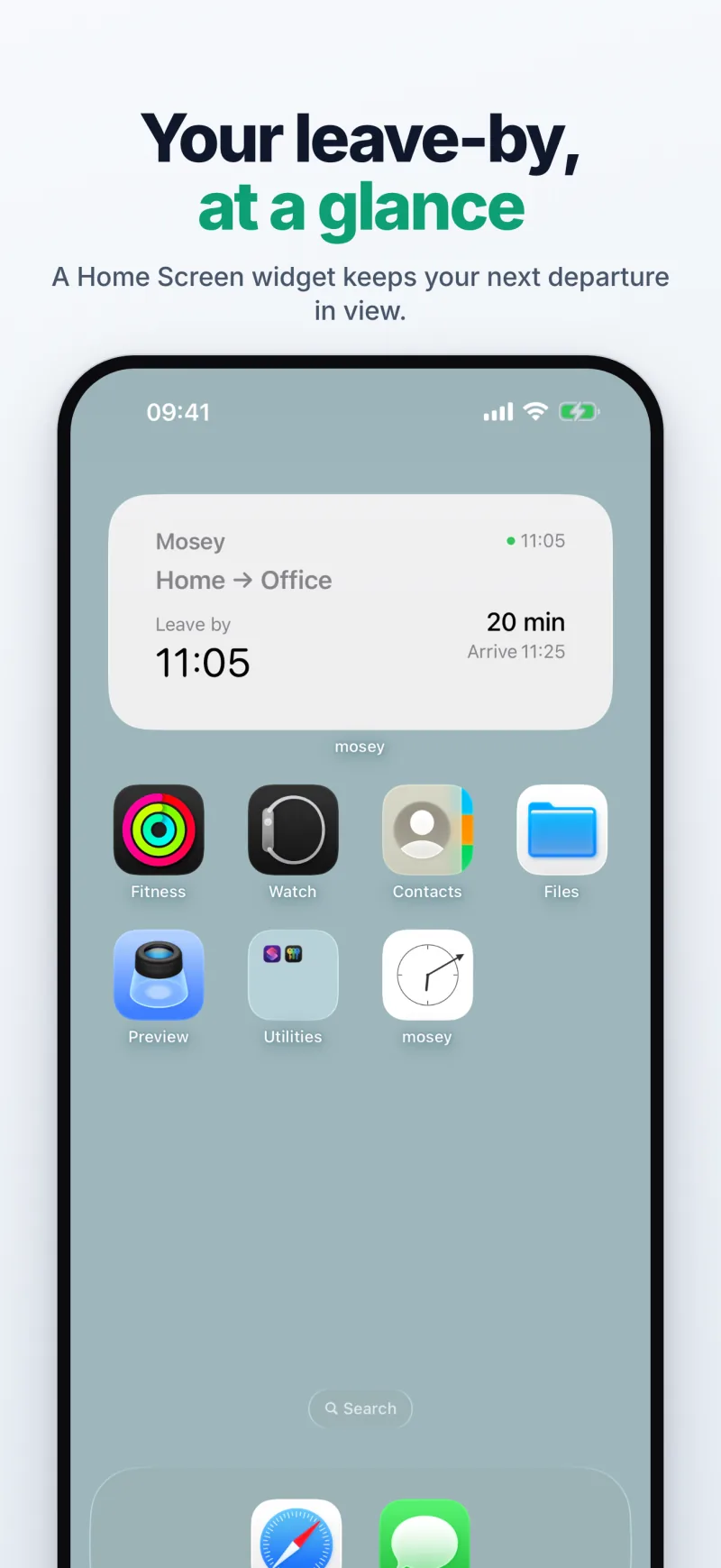
The medium widget shows your next commute: the route name, the leave-by time, the drive in minutes and the arrival time, a line about the weather or unusual traffic when there is one, and "+1 more" when other routes are still due today. When its data is more than a few minutes old, it says how long ago it was updated.
On a day without a commute it shows the next scheduled departure instead, with its date — Mosey fills that in whenever you open the app. A route Mosey hasn't measured a drive time for yet stays off the widget, rather than counting down to a guessed time.
The Lock Screen widget
The small round Lock Screen widget is a countdown: the minutes until you need to leave, inside a ring that empties over the final hour, and "GO!" when it's time. When the departure is further away — tomorrow morning's, say — it shows hours instead. Routes drop off an hour after their leave-by, so you never look at yesterday's commute.
Which one when
The Live Activity is there only on commute mornings, for the stretch before you leave, and it is the one that moves second by second. The widgets are there all the time: the round Lock Screen one when the number of minutes is all you need, the medium Home Screen one when you want the route, the leave-by, the drive and the arrival time at a glance.
How to add them
The widgets are added the usual iPhone way; the Live Activity needs no setting up.
- Home Screen: touch and hold the background until the apps jiggle, tap Edit, then Add Widget. Find Mosey ("Commute Status"), tap Add Widget and then Done.
- Lock Screen: touch and hold the Lock Screen, tap Customize, then Lock Screen. Tap the area under the clock and choose Mosey ("Commute Timer").
- Live Activity: nothing to add — just check that Live Activities is on for Mosey in Settings › Apps › Mosey.
Kept current in the background
Widgets can't check traffic themselves. Mosey's server does, and sends a silent push that refreshes the widget data and the Live Activity; when a departure is within two hours the app also refreshes in the background when iOS lets it. iOS decides when those background updates arrive, so one can come late — but the countdowns tick on the iPhone itself, minute by minute, so the number stays right between updates. Open the app and everything syncs again.
What it is — and isn't
The widgets and the Live Activity follow the language you choose in Mosey's Settings. There is no Apple Watch app, and Mosey is iPhone-only — no iPad or Mac version. The alarm that wakes you is on the page “A wake-up alarm that adjusts to the traffic”; how the leave-by is worked out, on “When to leave for work, from today's traffic”.
Frequently asked questions
Do I need to open the app for the Live Activity?
No. Mosey's server starts it by push when it makes the morning's first traffic check — about an hour before the leave-by with the default reminders — as long as Live Activities are allowed for Mosey in iOS Settings. Opening Mosey within two hours of the leave-by starts it straight away.
Why is the widget empty?
It shows your next commute: today's, or on a day without one, the next scheduled departure. It is empty when no route is active, or when Mosey hasn't measured a drive time for the route yet — for example where live traffic isn't available. After the day's last commute it clears an hour past the leave-by; opening Mosey fills in the next one.
Does the countdown keep running without a connection?
Yes. The minutes are counted on the iPhone; only a new leave-by needs an update from Mosey's server.
Is there an Apple Watch complication?
No. Mosey runs on iPhone only.
How do I add the widget?
Home Screen: touch and hold the background, tap Edit, then Add Widget, and pick Mosey. Lock Screen: touch and hold the Lock Screen, tap Customize, then Lock Screen, tap the area under the clock and pick Mosey.