
Adding a loyalty card to Apple Wallet
Updated · TIT
Apple Wallet keeps your tickets and passes in one place, and it's where many people would like their loyalty cards too. Up to iOS 26, though, Wallet could only take a store card as a pass issued by an app: the store's own, if it has one, or an app such as Beep. iOS 27 adds a way to create passes in Wallet itself. Here is how both routes work, what each one needs, and what to expect at the till.

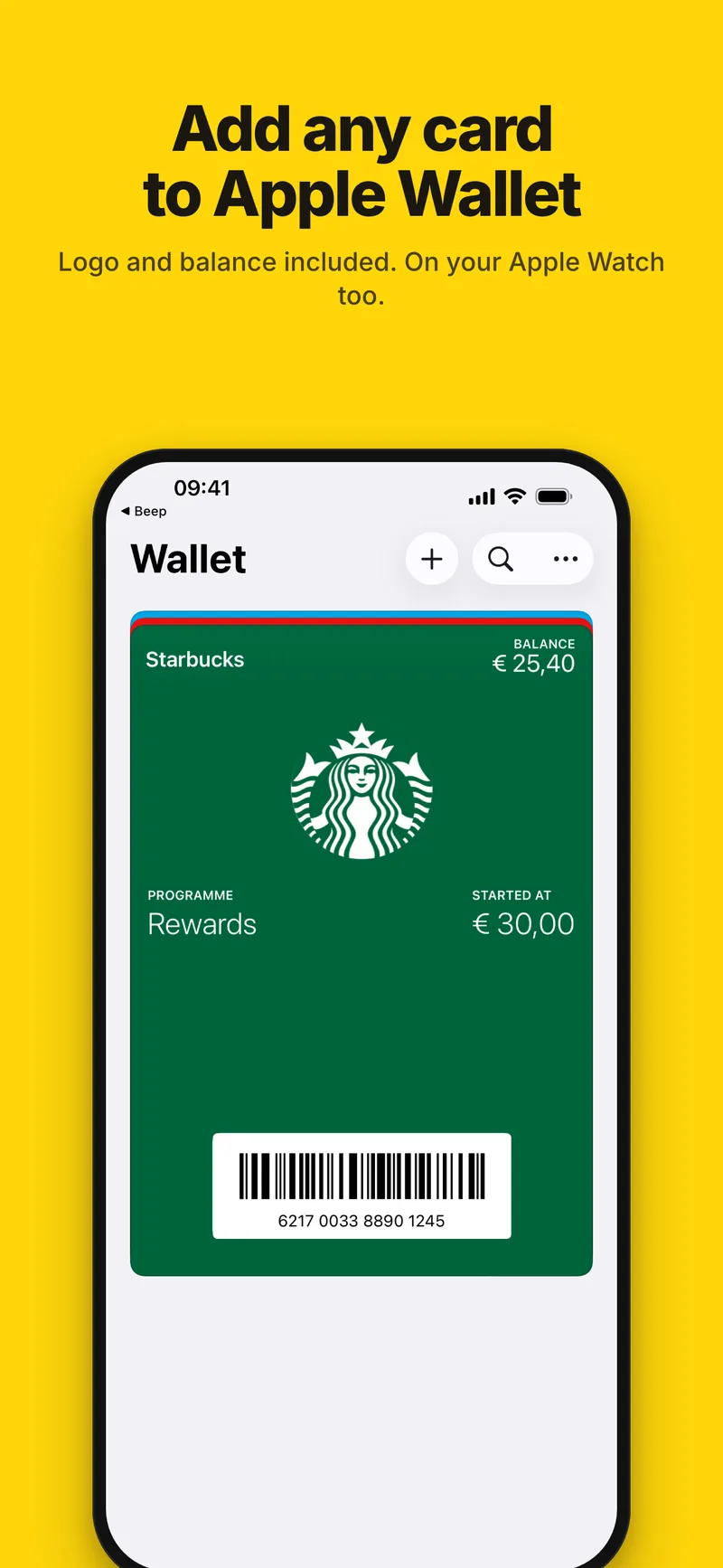
Up to iOS 26: through an app
Up to iOS 26, Wallet only accepts passes that an app or a website issues and signs; there is no way to turn a plastic card into a pass from inside Wallet. Some chains put an Add to Apple Wallet button in their own app. For every other card you need an app that makes passes from the cards you already carry — Beep is one, and it runs on any iPhone with iOS 17 or later.
iOS 27: create a pass in Wallet
iOS 27, released in September 2026, lets you make your own passes. Apple has membership and loyalty cards in mind that have a barcode or QR code but no digital pass, such as a library card or a gym membership. There are two ways to do it:
- From a photo or screenshot: take a photo or screenshot that shows the card's barcode or QR code, tap Add to Wallet and follow the steps; Apple Intelligence fills in the pass. Apple lists an iPhone 15 Pro or later with Apple Intelligence and visual intelligence turned on, and notes that Apple Intelligence isn't available in every language or region.
- By hand: in Wallet, tap +, then Create a Pass and Create Pass Manually, choose a template (standard, membership or event) and fill in the fields. Apple's iPhone User Guide gives the Apple Intelligence requirement for the photo route only.
When Beep is the easier route
Making a pass in Wallet works well for a card or two. Beep goes about it differently, and that helps in a few cases:
- No iOS 27 needed: Beep works on any iPhone with iOS 17 or later, with or without Apple Intelligence.
- The store's logo and colour: when you take a photo of a card, Beep recognises the store from the name printed on it, and the pass gets that store's logo and colour. More than 800 stores are built in; one that isn't goes in by name, in a colour you pick.
- Only a number: type it in and Beep draws the barcode.
- Gift cards: the pass shows the balance on the front and carries the PIN on the back.
- Keeping it current: when you log a spend or change a card, Beep tells you the pass in Wallet still shows the earlier version, and adding it again replaces it.
- The card stays in Beep too: searchable, with photos of the card and, for a gift card, its balance and history. At the till, Beep shows the barcode full width in the format printed on the card.
Adding a card from Beep
Add the card to Beep with a photo or by typing its number, open it and tap Add to Apple Wallet. Wallet shows you the pass first, and you add it from there. All your Beep cards sit in one stack in Wallet; swipe through the stack to switch.
Beep builds the pass on your iPhone. Wallet only accepts a pass with a signature, so Beep sends a list of file hashes to its signing service — never the store name, the card number or the balance — and that step needs an internet connection. Cards you add to Apple Wallet also show up in Wallet on a paired Apple Watch.
Good to know
Barcode formats: on iOS 27, a card printed with EAN-13, UPC-A, Code 39 or ITF keeps its own barcode on the pass. Up to iOS 26 Wallet could only show QR, PDF417, Aztec and Code 128, so there the same pass shows Code 128 with the same number, and Beep says so on the card before you add it; EAN-8 goes in as Code 128 on every version. The number is what the till looks up, and in Beep itself the barcode stays as printed. A pass added before Beep 1.2 has only the Code 128: add the card again to get its own barcode.
A pass is a snapshot: it shows the balance and details from the moment you added it. When you log a spend or change the card in Beep, the card screen says Apple Wallet still shows the earlier version; add it again and the pass in Wallet is replaced, not duplicated. Beep can tell for passes added with version 1.2 or later.
Apple's own pages
- Create passes in Wallet on iPhoneiPhone User Guide
- Create a pass using Siri Mode in Apple WalletApple Support
- Set up cards and passes in Wallet on Apple WatchApple Watch User Guide
Frequently asked questions
Can I add any loyalty card to Apple Wallet?
Almost any card with a barcode, a QR code or a printed number. On iOS 27 Wallet can create the pass itself; on any iPhone with iOS 17 or later, Beep adds it for you. Codes that change over time, like some concert tickets, don't work as a fixed pass.
Do I need Apple Intelligence to create a pass in Wallet?
To make one from a photo or screenshot, yes: Apple lists an iPhone 15 Pro or later with Apple Intelligence. Apple's iPhone User Guide doesn't give that requirement for filling in a template by hand. Beep needs neither iOS 27 nor Apple Intelligence.
Does the balance on the pass update when I spend?
Not by itself. The pass shows the balance from when you added it. After you log a spend, Beep tells you the pass is out of date; add the card to Wallet again and the pass is updated.
Will my cards show up on Apple Watch?
Yes. Cards you add to Apple Wallet also show up in Wallet on a paired Apple Watch, so you can show a card from your wrist.
Does Beep send my card to a server to make the pass?
No. Beep builds the pass on your iPhone and sends only a list of file hashes to its signing service, which returns the signature Wallet requires. The store name, the card number and the balance never leave your phone.