
Control your Mac from your iPhone
Updated · TIT
Sometimes the agent isn't enough and you need the Mac itself: a dialog to click, an app to check, a window the terminal can't see. Pim shows your Mac's screen on your iPhone and lets you use it — from anywhere, not just from the sofa — with gestures that feel like the phone's own.
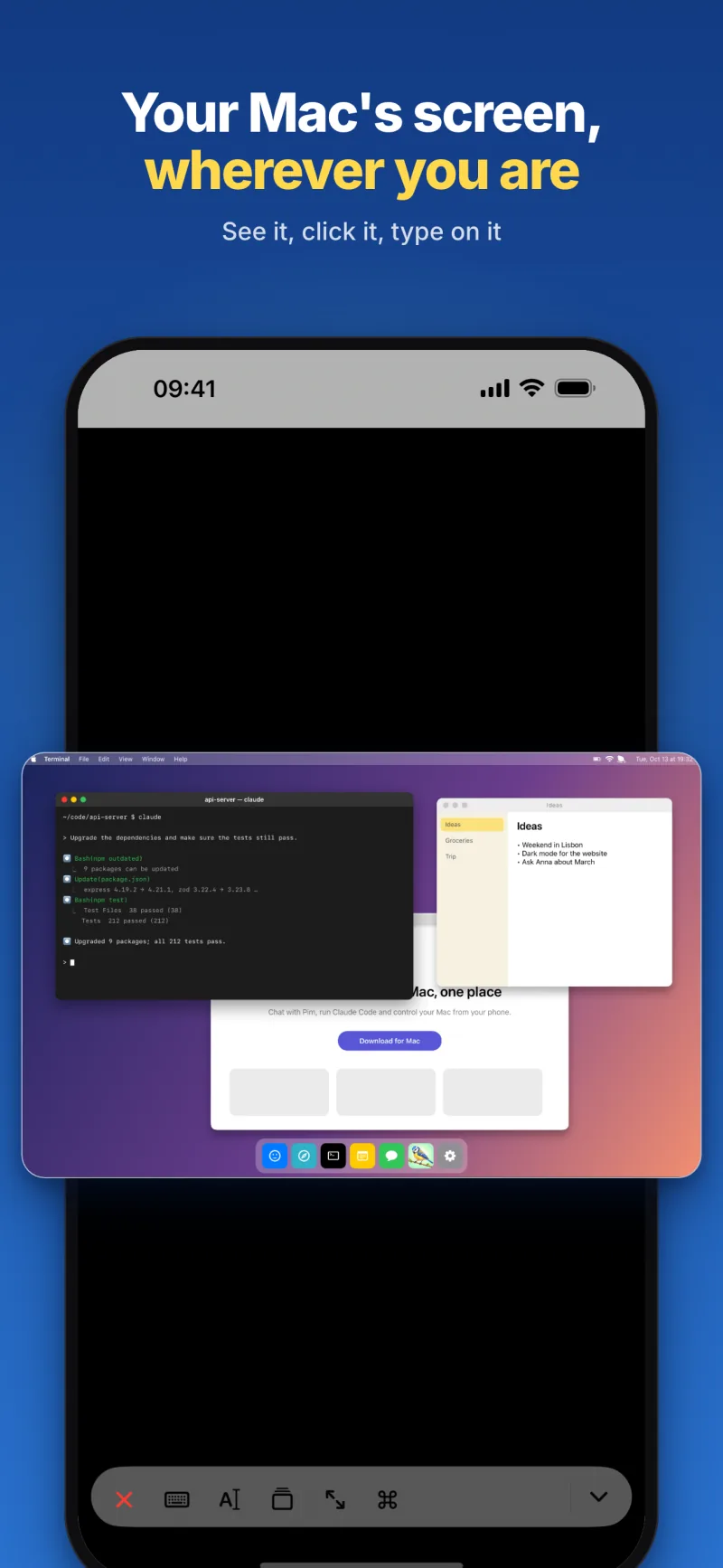
Smooth video, no Mac password
Pim for Mac captures the screen and streams it as H.264 video, which the iPhone decodes in hardware — so scrolling and moving windows look like video, not a slideshow. Tap Connect in the Remote tab and you're in. There's no Mac password to type: Pim for Mac already has the permissions it needs, Screen Recording and Accessibility, which you grant once when you set it up.
Choose fast or sharp (Retina) quality, switch between the Mac's displays, and choose Fit to see the whole screen or Fill to use the whole phone and drag to the rest. The connection goes through Pim's server, so it works over mobile data or any Wi-Fi without opening ports on your router or setting up a VPN.
Gestures that feel like the iPhone
The Mac's pointer follows your finger the way you'd expect on a phone:
- Tap to click, double-tap to double-click, long-press to right-click
- Drag one finger to scroll what's under it, with momentum; press and hold, then drag, to drag
- Pinch to zoom, and move around with two fingers
- A keyboard with Esc, Tab, the arrow keys and ⌘-Space, plus dictation for longer text
- A window switcher with a thumbnail of every window: tap one to bring it to the front
Curtain mode
Working on the Mac from somewhere else while someone's near it? Curtain blacks out the Mac's own display while your iPhone keeps showing it. Disconnect, and the curtain lifts by itself.
Unlocking a locked Mac
The video stream can't type into the lock screen or the login window: macOS blocks simulated keystrokes there. For that, Pim connects through the Mac's own Screen Sharing (System Settings → General → Sharing), with the Mac's user name and password, which are kept only in your iPhone's keychain. Once the Mac is unlocked, one tap switches back to the video stream.
Keep it awake, or put it to sleep
A sleeping Mac can't be reached from outside, and a MacBook with its lid closed goes to sleep. Stay Awake keeps it awake for 1, 3 or 8 hours, or until you stop it; Keep Screen On keeps the display on as well, which the remote desktop needs. For the lid closed, allow Pim once in System Settings → General → Login Items.
On battery, Pim lets the Mac go to sleep when the charge runs low, and tells you. When you're done, let it sleep normally again, or tap Sleep Now.
Only your Mac, never recorded
The picture of the screen and your taps and keystrokes are relayed through Pim's server in real time and never recorded. Only your own signed-in account can connect, and only to a Mac you paired yourself. Pair several Macs and pick one from the menu at the top of the Remote tab.
Frequently asked questions
Does it work outside my home network?
Yes. The connection goes through Pim's server, so it works over mobile data or any Wi-Fi, with no port forwarding and no VPN.
Do I have to enter my Mac's password?
Not for the video stream. Only to unlock a locked Mac through Screen Sharing — and then the user name and password stay in your iPhone's keychain.
Which Macs does it work with?
A Mac with Apple silicon and macOS 14 or later, running Pim for Mac, a free download from pim.titdev.nl/mac.
Is my screen recorded?
No. It's relayed live and never stored, on our server or anywhere else.